Setting Up the Ultimate Multi-Sport Streaming Hub (2026 Edition)
It’s Sunday afternoon. The Formula 1 Grand Prix is on Lap 45 of 50. Manchester City has just kicked off against Arsenal. The NFL RedZone countdown clock is ticking.
In 2015, you had to toggle the channel button on your remote like a panic-stricken telegraph operator. In 2026, we don't switch channels—we multitask.
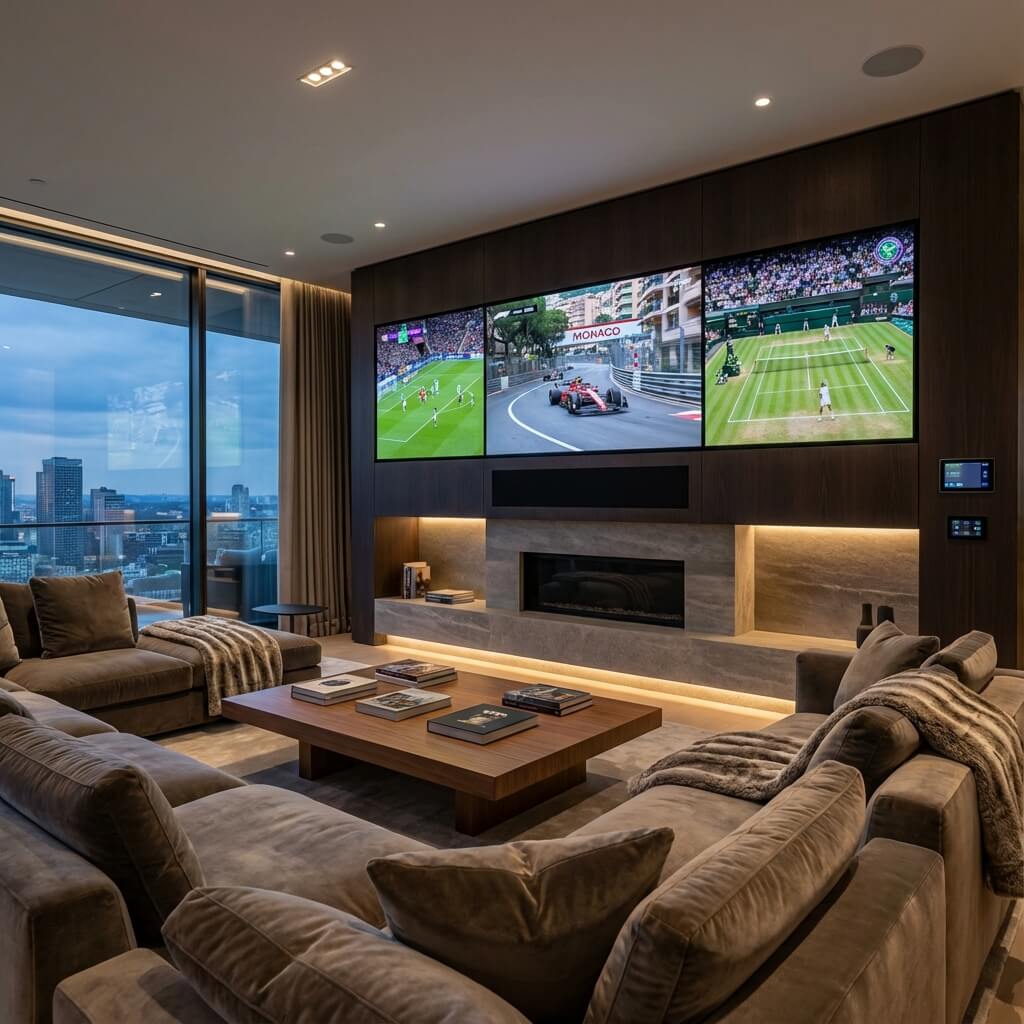
The modern sports fan needs a "Command Center." Whether it’s a dedicated media room (Man Cave) or a highly optimized living room corner, setting up a system that can handle multiple high-bitrate streams simultaneously requires more than just a big TV. It requires a harmony of hardware, bandwidth management, and software savvy.
This guide will teach you how to build a setup that would make a NASA flight controller jealous. We cover the screens, the sound, the silicon, and the secrets to zero-lag multi-streaming.
Phase 1: The Visual Canvas (Screens & Layout)
The "Standard" setup is one TV. The "Pro" setup is a visual ecosystem.
The Centerpiece: The Primary Display
This is where the main event lives.
- Recommendation: Sony A95L QD-OLED (65” or 77”).
- Why: Sports are bright. Organic LED (OLED) creates perfect blacks, but "Quantum Dot" (QD) adds the brightness needed to make a football pitch look vibrant at 2pm on a sunny day.
- Essential Spec: 120Hz Refresh Rate. Do not buy a 60Hz TV for sports in 2026. The ball motion will blur. You need 120Hz for butter-smooth panning.
The Wingmen: Secondary Displays
You need screens for the "Second Struggle" (the other game) and "Data" (FPL, stats, Twitter).
- Option A: The Vertical Monitor: A 24" monitor rotated 90 degrees. Perfect for scrolling Twitter/X feeds or a vertical F1 timing tower.
- Option B: The iPad Pro on a VESA Arm: Mount an iPad arm to your side table. It’s the perfect controller for your smart home and a dedicated screen for "FlashScore" or "F1 Multiviewer".
The "Quad-Box" Software Solution
You don't need 4 physical TVs. You need software that splits one big screen.
- Apple TV 4K (tvOS 19): Native Multi-View supports up to 4 streams from MLS Season Pass or MLB.
- FuboTV: Incredible "MultiView" feature allowing 4 channels at once.
- YouTube TV: Their "Mosaic Mode" is great for NFL, but limited for international soccer.
Phase 2: The Audio Soundstage
Watching sports isn't just about seeing the goal; it's about hearing the crowd roar.
The Problem: If you have 2 games on, playing audio from both is chaos. The Solution: Audio Routing.
- Main Event: Audio goes to the Soundbar (Sonos Arc or Sennheiser Ambeo). This fills the room.
- Secondary Event: Audio goes to Wireless Headphones (AirPods Max / Sony WH-1000XM5). Use "Audio Sharing" on Apple TV to split the feed. Or, keep the secondary event muted with subtitles (Close Captions) enabled.
Pro Tip: Enable "Voice Emphasis" on your soundbar. Sports mixing often drowns out the commentary with crowd noise. This EQ setting boosts the mid-range frequencies (human voice) so you can hear what Gary Neville is actually complaining about.
Phase 3: The Engine Room (Hardware)
Your Smart TV's built-in processor is weak. It will choke if you try to run 4K HDR + a muted PIP stream. You need dedicated silicon.
Ranked: Best Streaming Boxes for Multi-Tasking
-
NVIDIA Shield TV Pro (2025 Model):
- The Beast. It uses AI Upscaling to make 1080p sports streams look like 4K. It handles high-bitrate streams (like Remuxes) without breaking a sweat.
- Best feature: Customizability. You can sideload apps like TiviMate (essential for IPTV).
-
Apple TV 4K (3rd Gen):
- The Polished Choice. Fastest UI in the game. Switching apps takes 0.5 seconds.
- Best feature: Ecosystem integration. Use your iPhone as a keyboard to search for "Bournemouth".
-
Fire TV Cube (3rd Gen):
- The Hands-Free Choice. "Alexa, tune to ESPN."
- Best feature: HDMI-In port allows you to plug your Cable Box/PS5 directly into the Cube and overlay weather/stats on top.
Phase 4: Network Architecture (The Invisible Lifeline)
Multi-streaming is a bandwidth hog.
- 1x 4K Stream: ~25 Mbps.
- 1x 1080p Stream: ~8 Mbps.
- Total for "Quad-View": ~60-80 Mbps sustained.
If your kid starts downloading a Call of Duty update, your F1 stream will pixelate.
The Network Upgrade Checklist:
- QoS (Quality of Service): Log into your Router Admin panel (192.168.1.1). Find "QoS". Set your Streaming Box (e.g., Apple TV) to "High Priority". This guarantees it gets bandwidth before your smart fridge or the kids' iPads.
- Ethernet is Non-Negotiable: Run a Cat6 cable. If your router is far away, look into MoCA Adapters (uses your home's coax cable wiring to send ethernet speed) or Powerline Adapters (uses electrical wiring). They are better than Wi-Fi.
- DNS Upgrade: Change your customized DNS on the router to Cloudflare (1.1.1.1) or Google (8.8.8.8). It resolves widespread CDN lookups faster than your ISP's default server.
Phase 5: The "Command Center" Software Stack
Hardware is useless without the apps.
1. For the IPTV Power User: TiviMate If you use a service like StreamElite, you need TiviMate (Android only).
- Multi-View: TiviMate is the king of DIY multiview. You can split your screen into 9 rectangles if you want.
- Catch-up: Scroll back on the EPG (TV Guide) to watch a game that ended 2 hours ago.
2. For the F1 Obsessive: F1 Multiviewer
- Platform: PC / Mac.
- Function: Connects to F1 TV. Lets you spawn infinite windows. Put the "Track Map" on one screen, "Verstappen Onboard" on another, and "Live Timing" on a third. It syncs them all perfectly.
3. For the Social Addict: TweetDeck (X Pro)
- Create a "Column" for specific hashtags (e.g., #FPL, #PremierLeague). Watching the global reaction in real-time enhances the "Live" feeling.
Troubleshooting the "Dad, the internet is slow!" Factor
Scenario: You have the boys over. 4K game is on. Suddenly, buffering. Diagnosis: Bufferbloat. Fix: SQM (Smart Queue Management). Modern routers (like Eero or Ubiquiti) have this. It prevents one device from hogging the entire "pipe" during a spike.
Scenario: The stream works but the quality keeps dipping. Diagnosis: Thermal throttling. Streaming sticks (Fire Stick, Chromecast) behind TVs get HOT. Fix: Use the HDMI extender cable to move the stick away from the hot back of the TV. Or, buy a dedicated box with a fan (Shield/Apple TV).
Conclusion: Building Your Sanctuary
A great multi-sport setup is about control. You control the angles, the audio, and the information flow. It transforms "watching TV" into "managing an event."
It takes some investment—both in cash and setup time—but when "Championship Sunday" rolls around and you are flawlessly tracking the title race across 3 screens while your friends text you asking "What's the score?", you'll know it was worth it.
Need the Content to Feed the Beast? You have the 4K TV. You have the Shield Pro. Now you need the feeds. StreamElite provides the high-bitrate, stable streams your hardware craves. With compatibility for TiviMate and native Multi-View support, it is the fuel for your high-performance engine.
[Upgrade Your Content Package] - Feed your 4K Setup today.
Internal Links
- Streaming Bitrate & Latency: Why Your Sports Stream Lags
- 4K Sports Streaming Guide
- Best Streaming Devices for Sports 2026