How to Stop Buffering on Firestick: 5 Instant Fixes
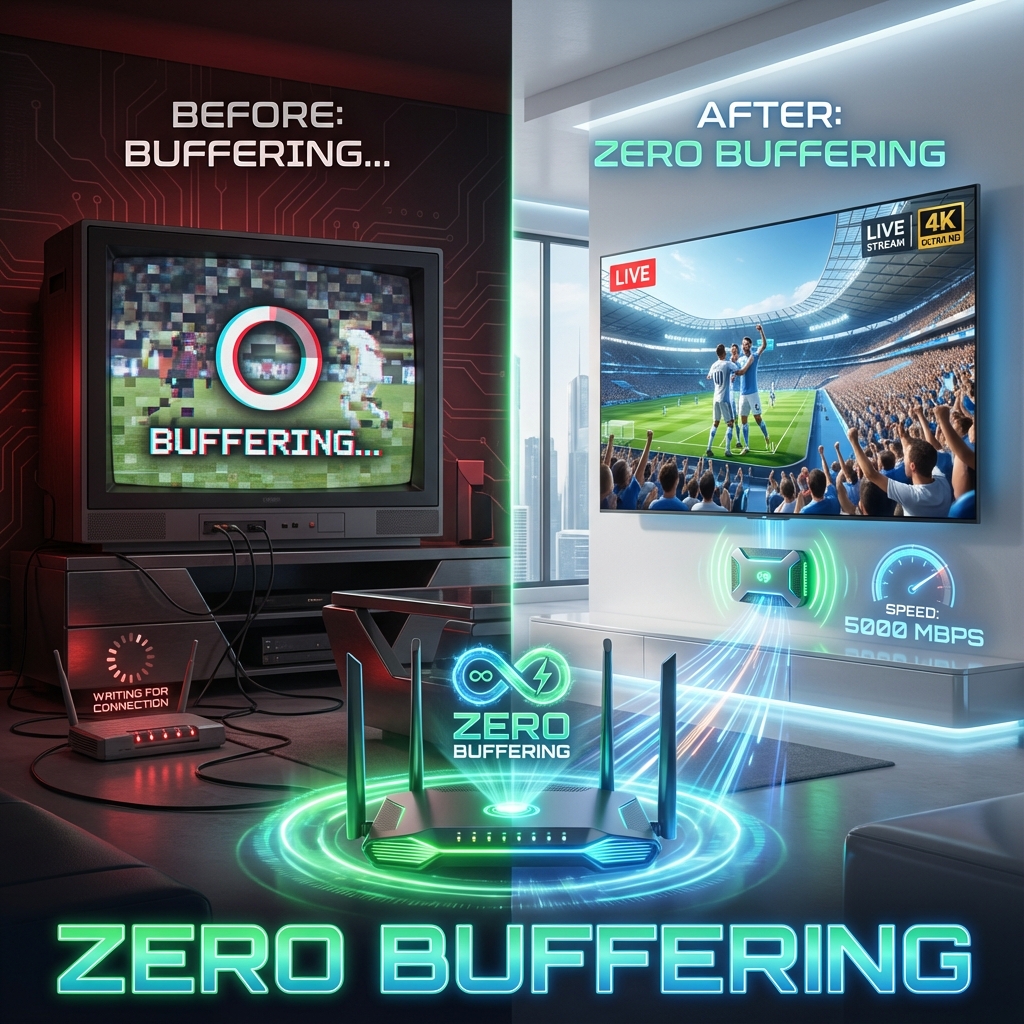
There is nothing more frustrating than watching the spinning "Loading" circle while your team is attacking.
Buffering on Amazon Fire TV Stick is common, but it is rarely because your internet is "slow." It is usually because your device is choked, hot, or fighting for signal.
Here are the 5 technical fixes we give to every customer who complains about lag. They work 95% of the time.
Fix #1: The "Force Stop" Method (The Reboot)
Your Firestick is a computer. Like your laptop, if you leave apps open for weeks, it gets slow.
The Fix:
- Hold down the Select (Center) and Play/Pause buttons at the same time for 5 seconds.
- This forces the device to restart.
- Better yet: Pull the power plug from the wall. Wait 10 seconds. Plug it back in. This clears the electrical cache in the capacitors.
Fix #2: Use the 5GHz Network (Speed)
Most routers broadcast two signals:
- 2.4GHz: Slower, but travels through walls better.
- 5GHz: Extremely fast, but weak range.
The Mistake: Your Firestick connected to the 2.4GHz network because the signal was stronger.
The Fix: Go to Network Settings. If you see two Wi-Fi names (e.g., HomeWifi and HomeWifi-5G), select the 5G one.
Note: You must be in the same room as the router for this to work well.
Fix #3: Turn Off "Data Monitoring"
Amazon has a hidden setting that tracks your data usage. This takes up processing power.
The Fix:
- Go to Settings > Preferences.
- Select Data Monitoring.
- Turn it OFF.
- While you are there, go to Privacy Settings and turn off "Collect App Usage Data." This frees up CPU cycles for streaming.
Fix #4: Check for Thermal Throttling
Touch your Firestick. Is it hot? If the device overheats, the processor slows down to protect itself. This causes video stutter.
The Fix:
- Use the HDMI Extender (the short cable in the box).
- Ensure the TV's heat vent isn't blowing hot air directly onto the stick.
- If you power the stick using the TV's USB port, STOP. Use the wall plug adapter. The TV USB port often doesn't provide consistent voltage, causing power dips.
Fix #5: The "Nuclear Option" (Buffer Size)
If you use TiviMate or IPTV Smarters, you can change the internal buffer size.
For TiviMate:
- Go to Settings > Playback.
- Change Buffer Size from "None" to "Large".
- Result: The stream starts 2 seconds later (slower start), but it is much more resistant to internet hiccups.
For Smarters:
- Go to Settings > Player Selection.
- Change "Built-in Player" to Hardware Decoder.
Still Buffering?
If you have done all 5 steps and it still lags, the problem is likely your Content Provider. Cheap IPTV services oversell their servers. When a big game starts, their servers crash. No amount of fixing your Firestick will solve that.
The Solution: Switch to a premium provider. StreamElite uses load-balanced servers with 10Gbps uplinks. We don't oversell. [Test Our Stability with a Free Trial]