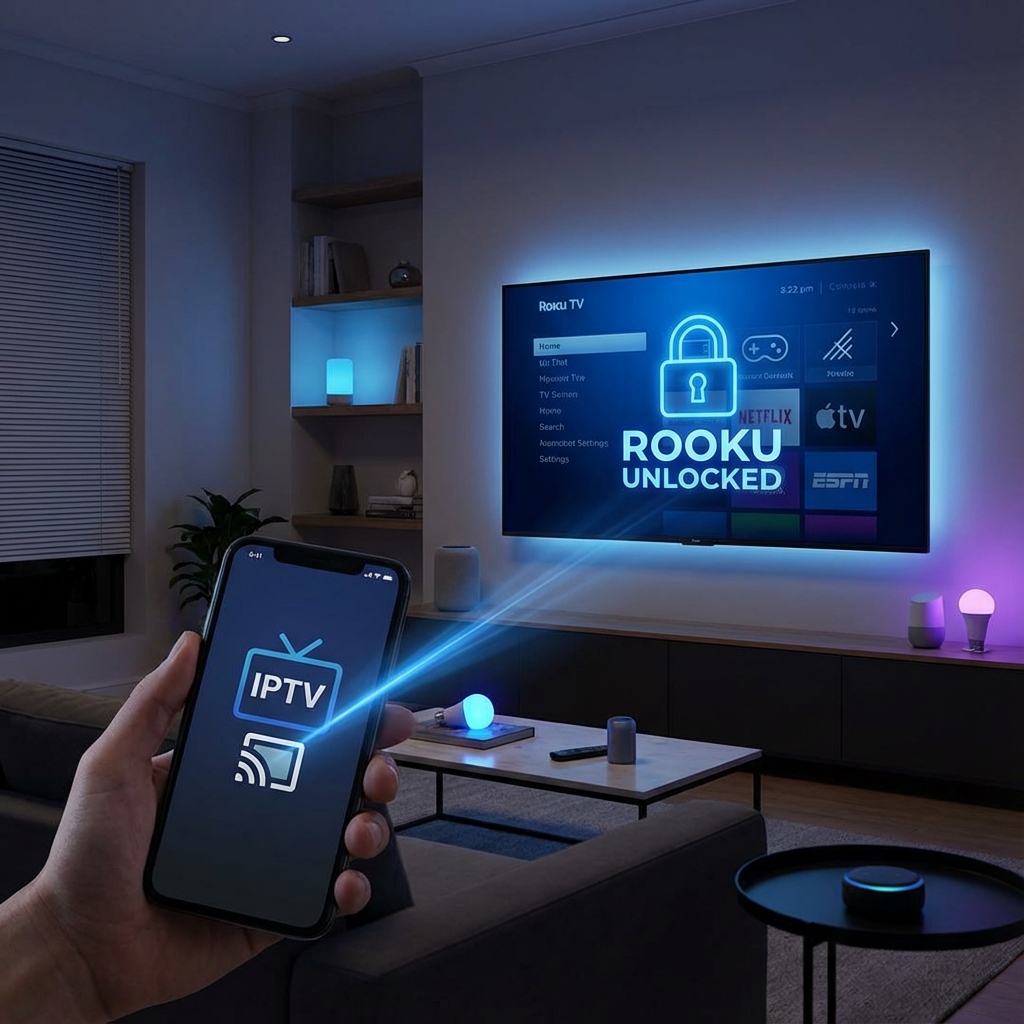
The Roku Problem: "No IPTV Apps"
If you search for "IPTV Smarters" on the Roku Channel Store, you wont find it. Roku has banned almost all IPTV applications from their platform.
But don't throw your Roku away just yet.
You can still watch StreamElite on your Roku by using a technique called "Web Video Casting". It is 100% free and works perfectly.
The Solution: Web Video Caster
Since Roku limits what you can install, we will use your Smartphone (Android or iOS) as the "Controller" and use the Roku merely as the "Screen".
Step 1: Prepare your Roku
- Turn on your Roku.
- Go to Settings > System > Screen Mirroring.
- Set "Screen Mirroring Mode" to "Prompt" or "Always Allow".
Step 2: Get the App (On your Phone)
Download an app called "Web Video Caster" (or Web Video Cast).
- It is available on the Apple App Store and Google Play Store.
- It acts as a browser that can "beam" videos to your TV.
Step 3: The Setup
- Open Web Video Caster on your phone.
- In the app's browser bar, type the Web Player URL provided by StreamElite (usually sent in your welcome email).
- Login with your Username and Password.
- Start playing a channel on your phone.
Step 4: The "Cast"
- Once the video starts on your phone, you will see a yellow "Play" bar at the top with a Cast Icon (Rectangle with WiFi signal).
- Tap it.
- Select your Roku device from the list.
- Boom. The video will stop playing on your phone and appear on your big screen.
Why this is better than "Screen Mirroring"
Standard screen mirroring drains your phone battery and requires you to keep your screen on. Web Video Casting sends the video link directly to the Roku. You can turn off your phone screen or use other apps, and the TV keeps playing.
Conclusion
While Roku makes it hard, they can't stop the signal. This workaround is reliable, high quality, and keeps your favorite device in the living room.
Get your IPTV Login details here to start casting today.